Blackbalsam
Begin by starting the App as described in the section Creating an Application. Select the CloudTop Viewer application.
Exporting REDCap Data into R
Step-1: Get a REDCap account for a project URL and API key
if you don’t have an account contact Adam Lee to get one. If you have an existing account use the credentials associated with it
Step-2: Go to https://reccap.cloudapps.unc.edu/accounts/login
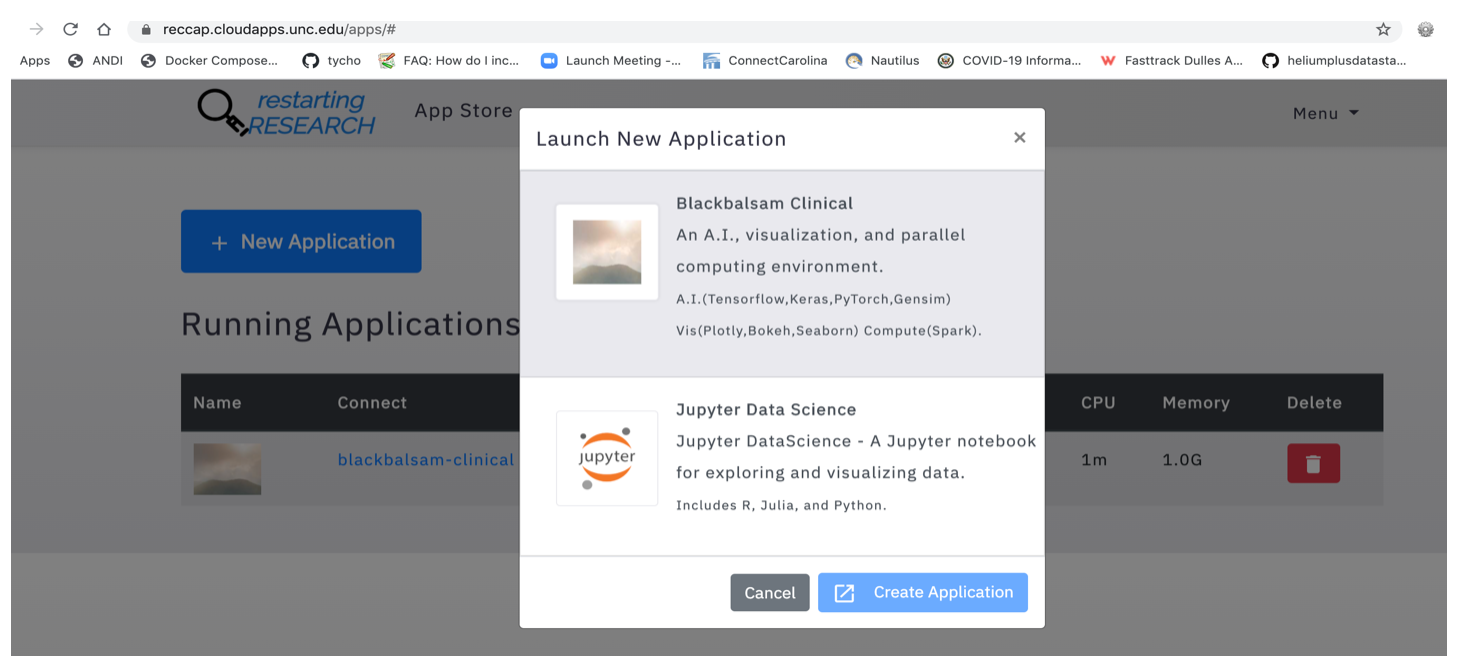
Step-3: Click “New Application” and choose Blackbalsam Clinical
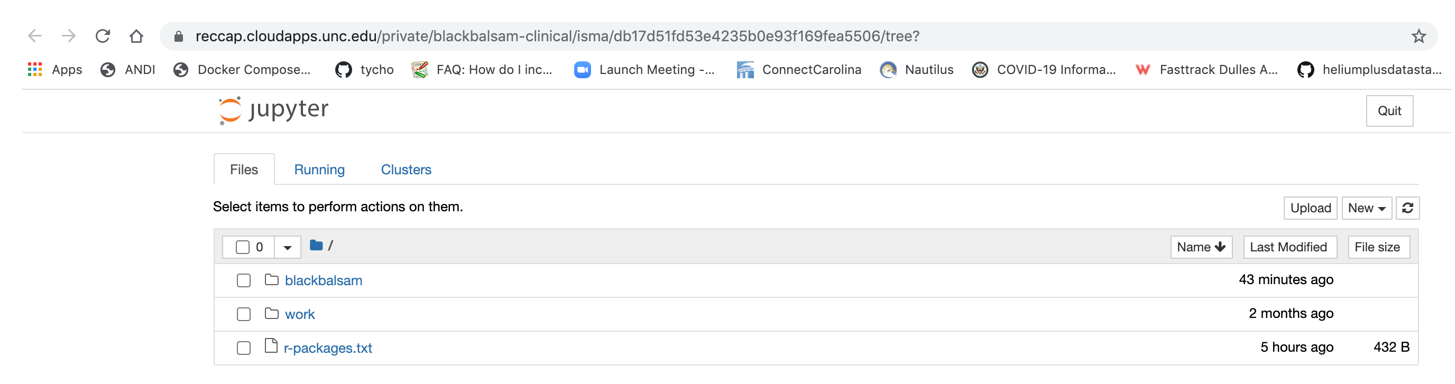
Step-4: Click on “black balsam” folder and then click on RedCapAPIRDemo.ipynb
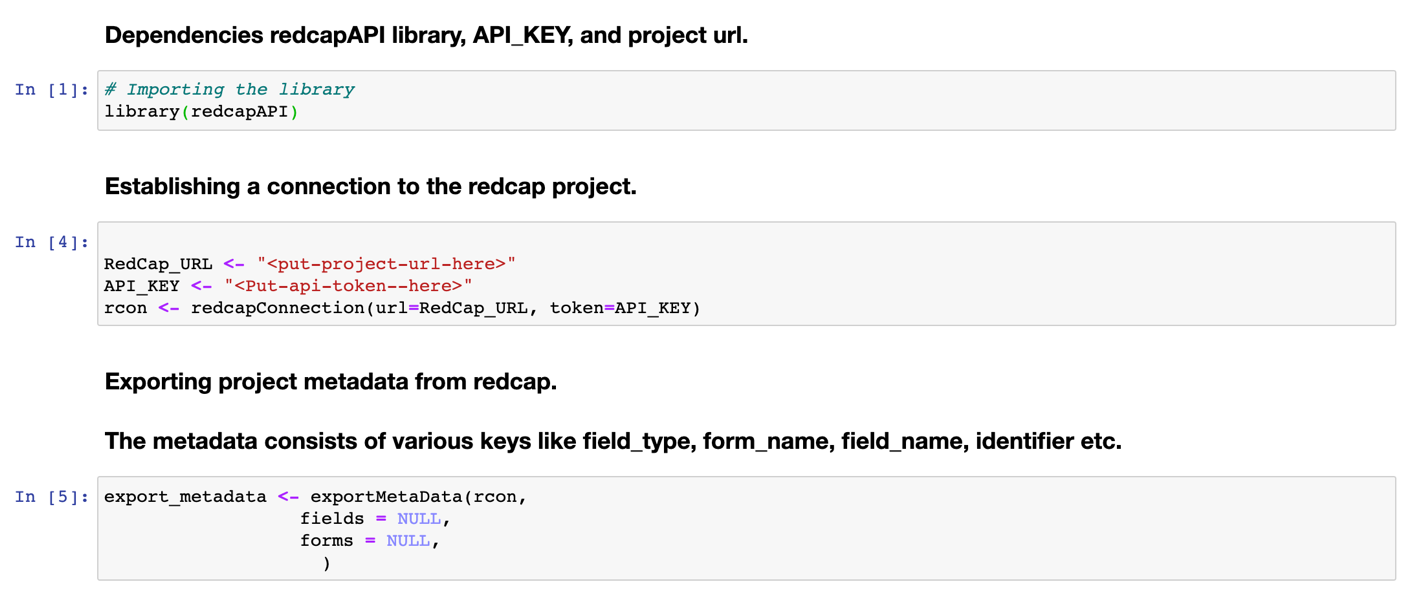
- Step-5: In the notebook, on cell 2 substitute REDCap URL and API key with
- your credentials

Step-6: Run first three cells in the notebook
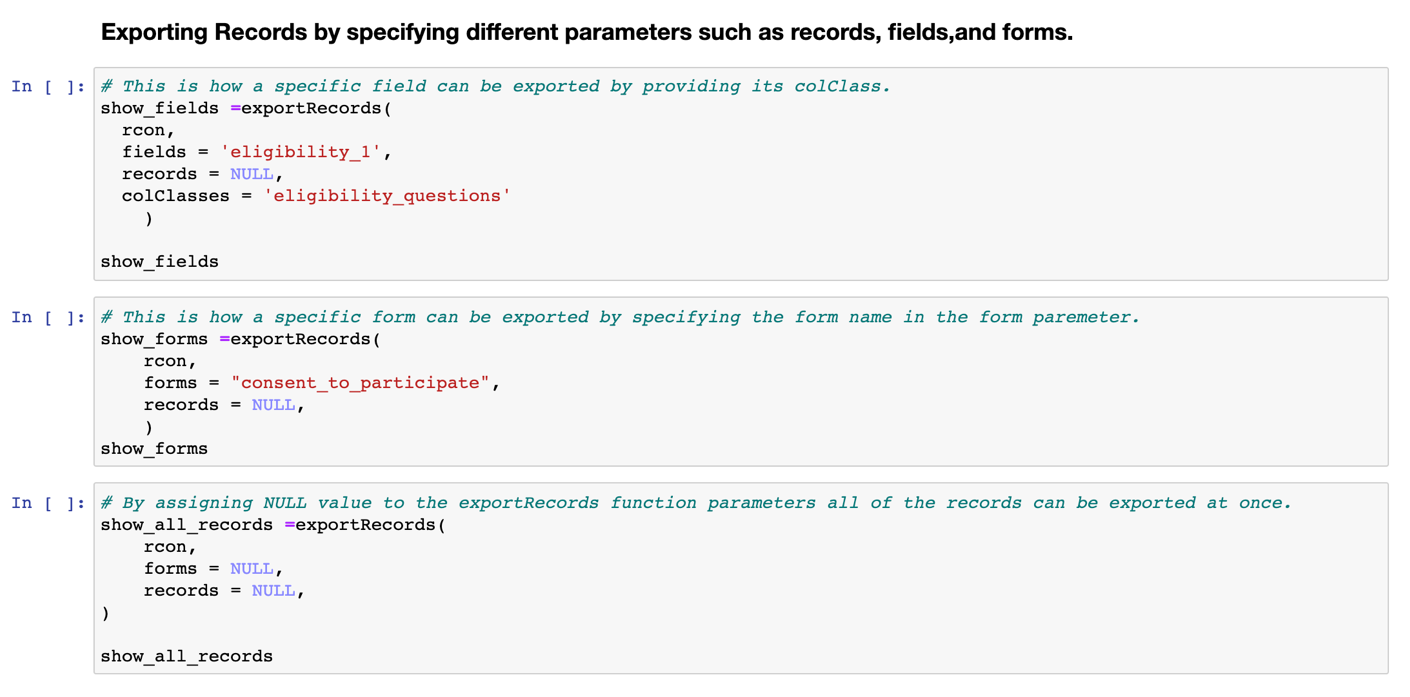
- Step-7: To export records, use show_forms, show_fields, or
- show_all_records cells
Using the restartr notebook to get data into mongodb
Step-1: Go to https://reccap.cloudapps.unc.edu/accounts/login and login.
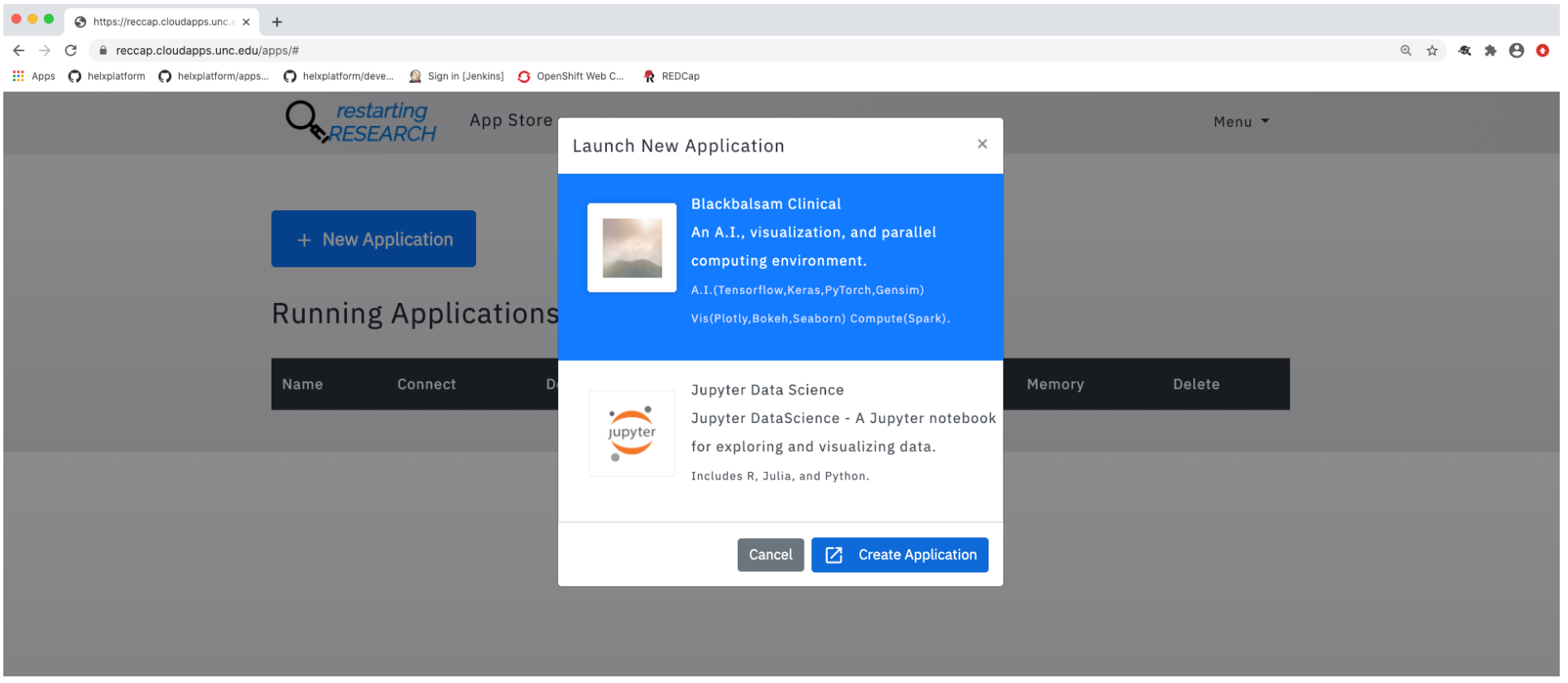
- Step-2: Click on “New Application”, choose Blackbalsam Clinical then
- click “Create Application”.
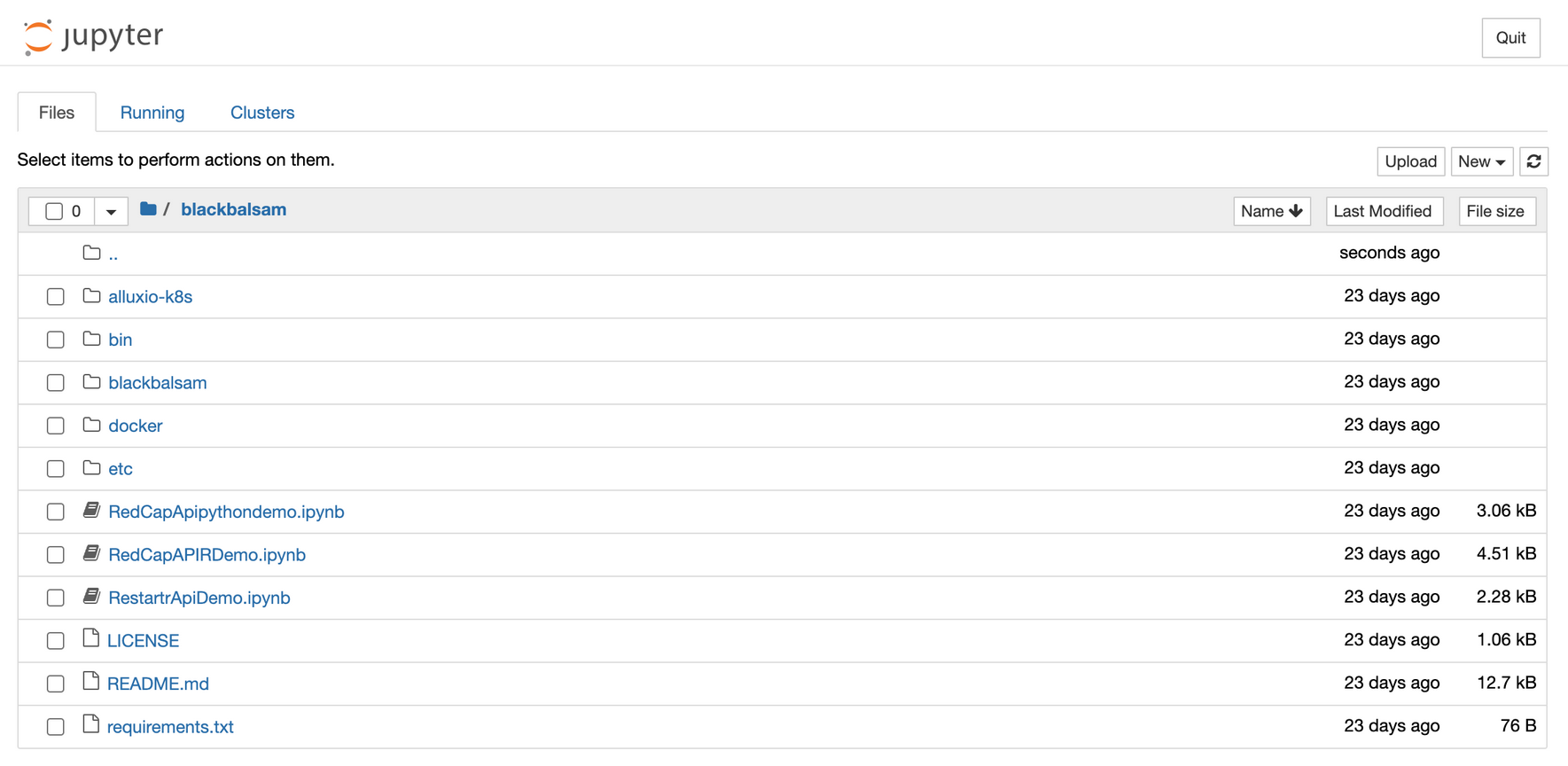
- Step-3: Click on the “blackbalsam” directory and then launch the
- RestartrApiDemo.ipynb notebook.
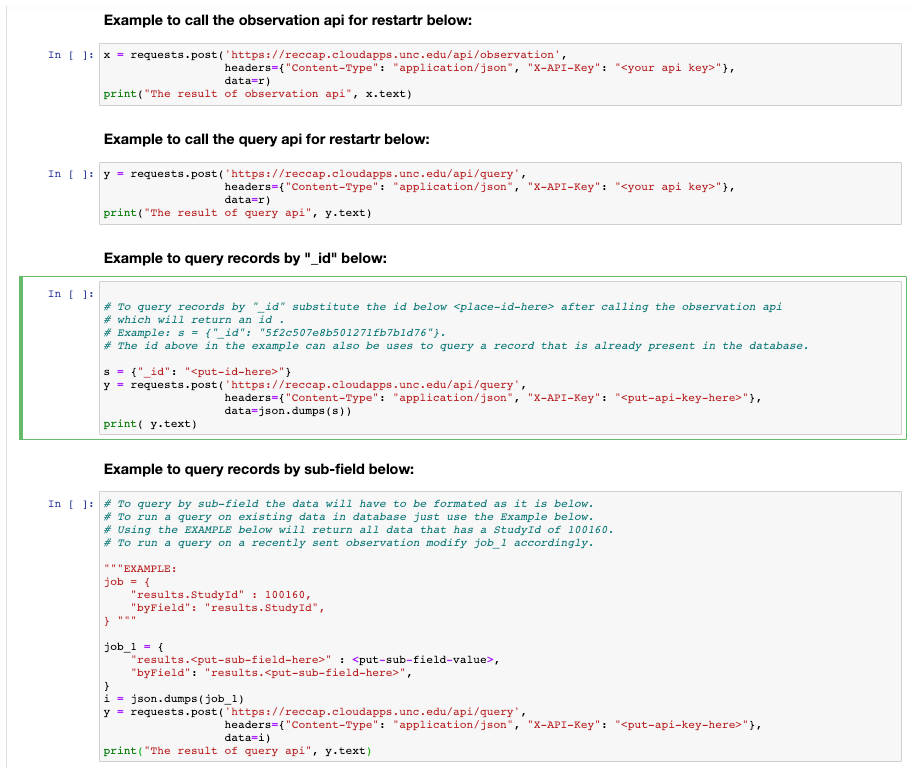
Step-4: In cells 3 to 6 substitute your api-key here “”.
Step-5: Run the first two cells in the notebook.
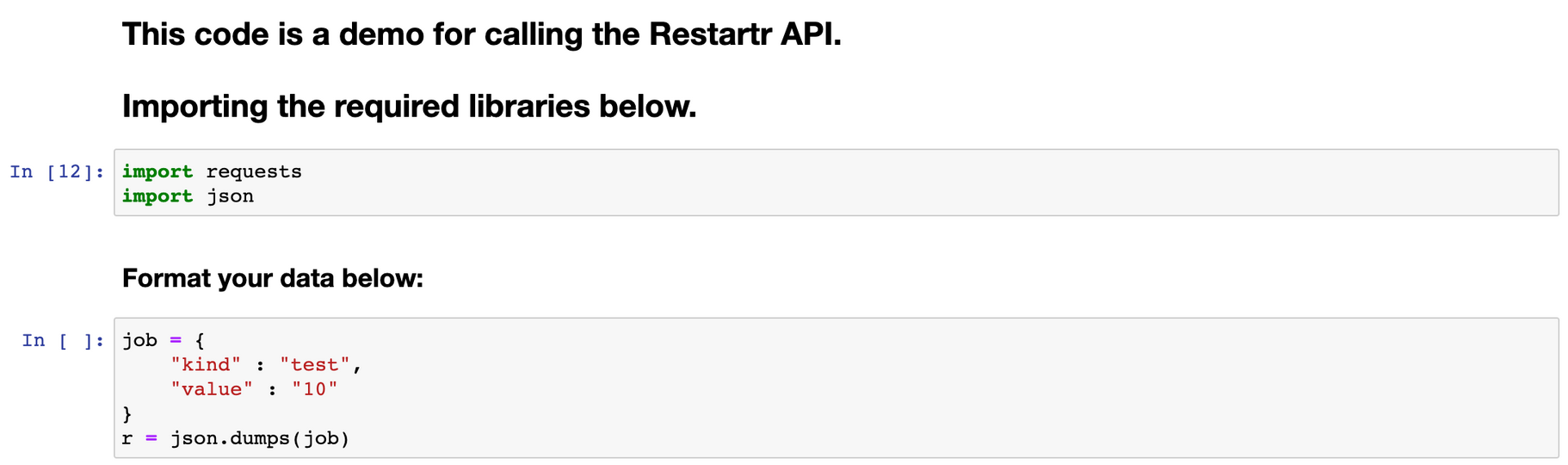
Step-6: Run the third cell to persist data into mongodb.

- The first cell imports the required dependencies.
- The second cell is where data can be formatted to insert into mongodb.
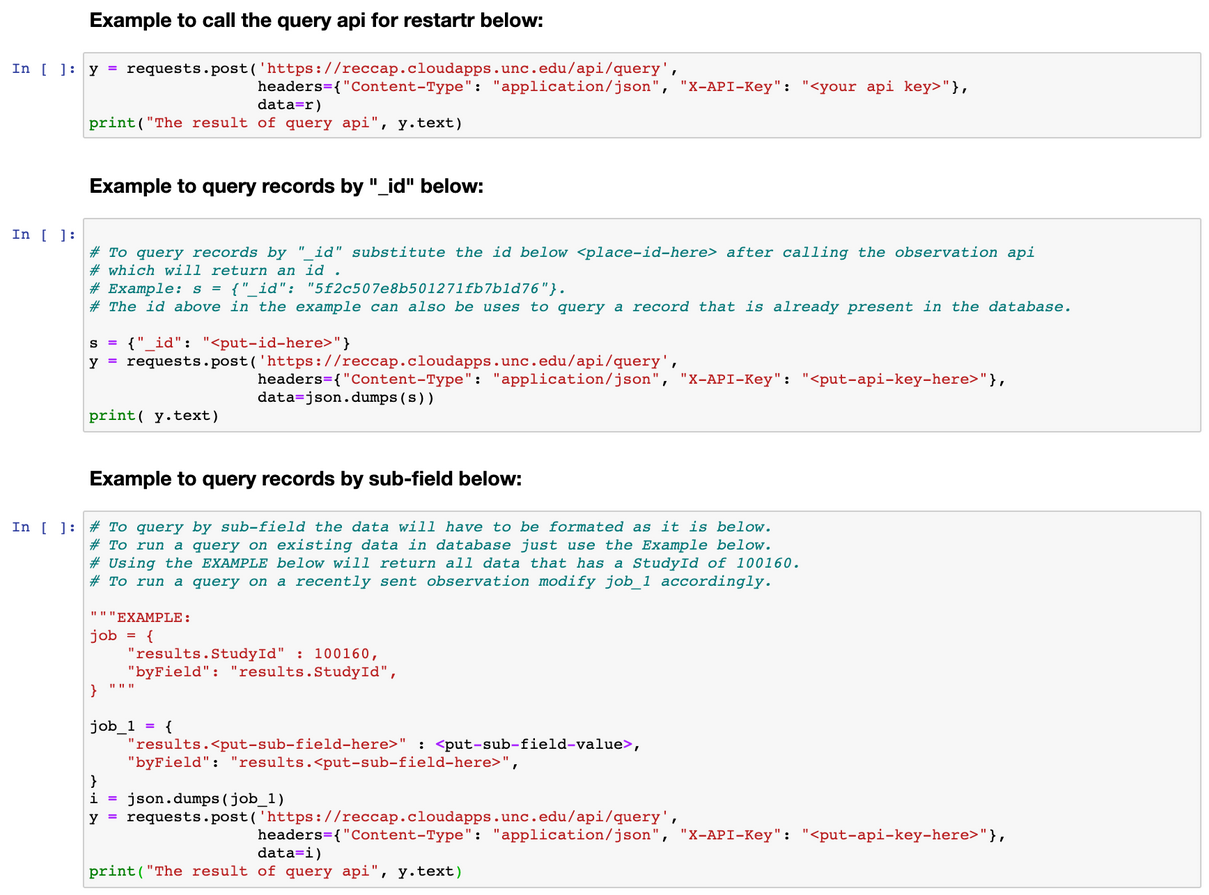
- Step-7: To query the data use, query by “_id”, query by sub-field, or just
- use query methods provided in the RestartrApiDemo.ipynb notebook.